Failover Cluster Chapter 8 - Increase the Amount of Node

There are some relevant chapters below,


Failover Cluster

8. Increase the Amount of Node

To enhance the fault tolerance of the failover cluster, increase more node is the essential method. Here we are going to add the 3rd node on the 2-node cluster we just created at the previous chapter.
Same as the other 2 nodes, the basic configuration must be done before adding the 3rd node to the cluster.

The basic configurations include set up IP addresses, join the domain, install "Failover Clustering" and "File server" features.

3rd node name: Node03
Public (Domain) IP address: 10.0.0.7
Private (Heart Beat) IP address: 192.168.0.7
CPU: 2
RAM: 2 GB

8-1. Add the 3rd Node


Click "Add Node..."

Click "Next"

Enter Node03, then click "Add"

Click "Next"

8-2. Validation and Test

Select "Yes...." to run the validation, then click "Next"

Click "Next"

Click "Next"

Confirm 3 nodes, click "Next"

Click "Finish"


8-3. Adding the 3rd Node

Click "Next" to Add the 3rd node

Click "Finish"

3 nodes are working as the cluster

8-4. Test the Cluster

Turn off the 2 servers Node01 and Node02,
Click the Node03  and select "Disks" tab to confirm now the Node03 is holding the disks.
Go to PC01 and open the test.txt file then modify it or add more words and save to test the cluster is still working fine.


Failover Cluster Chapter 7 - Check folder from PC01

There are some relevant chapters below,


Failover Cluster

7. Check folder from PC01

7-1. Login to PC01 and check share folder

Loing to PC01 with the user01 account

Open explorer, type "\\FOCFS\" it appears the correct link automatically, press enter

The shared folder "Shares" is connected

7-2. Map the shared folder as a network drive

Copy the path

Right click on the network icon, select "Map network drive..."

Select the letter "Z" for the drive, paste the path on the folder textbox, click "Finish"

Now the drive Z is the shared folder.
Right click on the right panel, create a new text file

Name the text file "Test.txt"
open it and type some work in there

7-3. Testing Failover Cluster is working by turning off the other node

Turn off Node02
Go to PC0, open the test.txt file and add more words then save it.
That means even one of the cluster node is offline, the cluster still provides services properly.


Failover Cluster Chapter 6 - Create Share folder

There are some relevant chapters below,


Failover Cluster

6. Create Share folder

6-1. Add File Share

Right click on the file server we just created on the last chapter, select "Add File Share"

Select "SMB Share - Quick", click "Next"

Type "E:\Shares" for the share path.
PS: E drive is the data drive. if your data drive is not E, then use the letter of your data drive.

Type "Shares" for the share name, click "Next"

Click "Yes" to create the "Shares" folder on E drive

Click "Next"

6-2. Assign users permissions

Click "Customize permissions..." to assign other users with permissions

Click "Add"

Click "Select a principal"

Create 3 users at the domain controller, names user01, user02, user03 before doing the next step
Type "user01", check names


Click "OK"


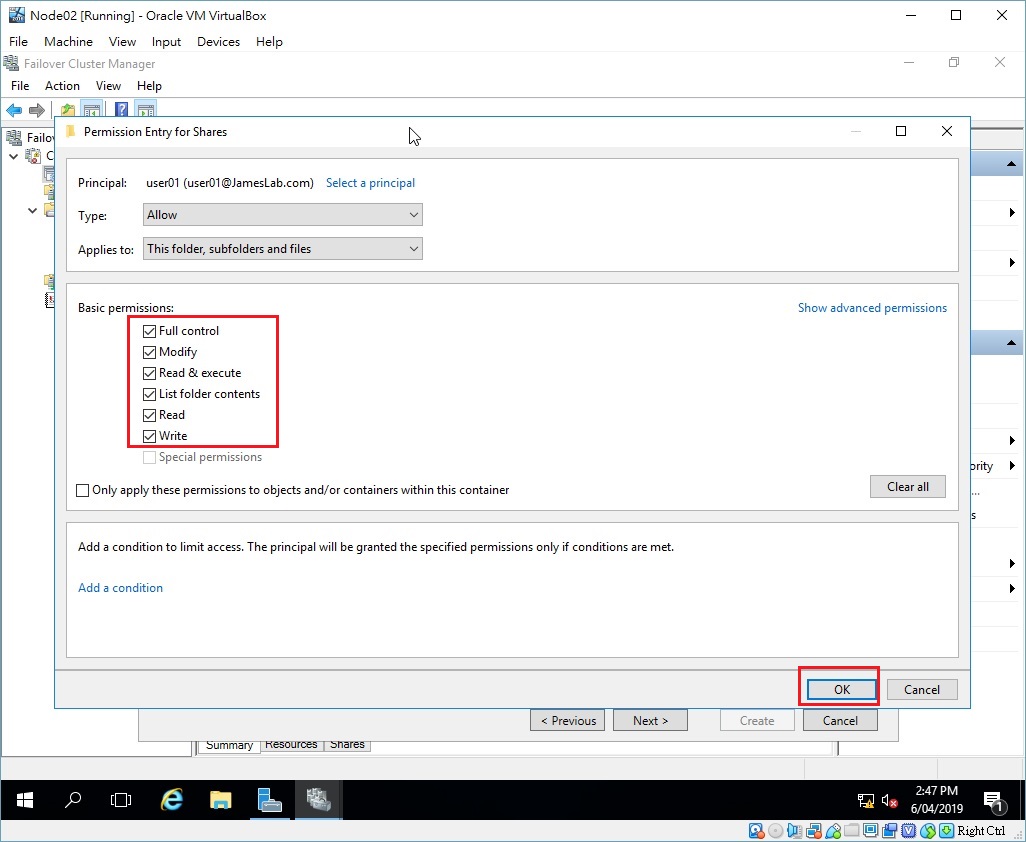
Aggign "Full control", click "OK"

User01 is assigned permission, click "Add" to assign user02 and user 03

Type "user02" and click "OK"

Assign "Modify", click "OK"

Click "Add" to assign "user03"

Assign "Read & execute" permission to  "user03", click "OK"

Once 3 users have 3 different permissions, click "OK"

Click "Next"

Click "Create"

Click "Close"

Click the "Share" tab to see the shared folder is created


Failover Cluster Chapter 5 - Cluster Implement

There are some relevant chapters below,


Failover Cluster

5. Cluster Implement

5-1. Create a Cluster with 2 nodes

Click "Create Cluster"

Click "Next"

Type "Node01", click "Add"

Then type "Node02", click "Add"

Click "Next"

Type "Cluster" for the cluster name, type the cluster's IP address "10.0.0.10", click "Next"

Confirm 2 nodes are in the list, click "Next"

Click "Finish"

2 nodes are up, the node01's summay

The node02's summary

Click on the "Disks" tab of node02, that means node02 is holding the disks.

The left screen tells Node01 is not holding the disks.
The right screen tells node02 is the owner of the disks.
PS: in the beginning, we set the disks to the node01 but now the cluster server choose which server to hold the disks.


5-2. Configure General File Server on Cluster

Right click on the "Roles", click "Configure Role..."

Click "Next"

Select "File Server"
Unfortunately, the error message pop-up.
It tells that the 2 nodes are not ready to be a file server. So we have to install the file server role on each server from "Add Roles and Features"

On Node01, select "Add Roles and Features"

Select Node01, click "Next"

Expand the roles and select "File Server", Click "Next"

Click "Install"

When finished, do the same process again to install file server for node02
Select Node02, click "Next"

Select "File Server", click "Next"

Click "Close"

Go back to the cluster to install file server
Now the error message is gone

Select "File Server for general use", click "Next"

Type "FOCFS" for the server name, type "10.0.0.11" for its IP address, click "Next"

Select the disk then click "Next"

Click "Next"

Click "Finish"

Now the file server role is created and running